Customization
Most of the UI bends to your preferences: keyboard shortcuts, layout density, the radial quick-actions menu, tool-block collapsing, models, and per-project behavior all live in one Settings widget.
The Settings widget
Press Ctrl+, (also Cmd+, on macOS proper — iPadOS reserves that chord) to open Settings. Six tabs:
Project
Shown when the active session has a working directory; settings here apply to that project only.
- Path and hash — where the project lives and its internal ID.
- Additional directories — extra paths passed to Claude via
--add-dir, so it can read and edit outside the project root. - Shadow Git — enable/disable the auto-journal for this project, toggle rich (AI-summarized) commits, and configure the commit sections the summary model fills in — enable/disable built-in sections or add custom ones with your own prompt instructions.
Shortcuts
Every keyboard shortcut, searchable and rebindable. Type a name to filter, or type a key combo (ctrl+k) to find what's bound to it; filters for "customized only" and "conflicts only" help audits. Click a binding slot and press the keys you want — the editor captures the chord directly and flags conflicts with other bindings. Reset All puts everything back to defaults (two-click confirm).
Your overrides are pushed to the server, so they follow you across browsers and devices. The full default map is in the keyboard shortcuts reference.
Appearance
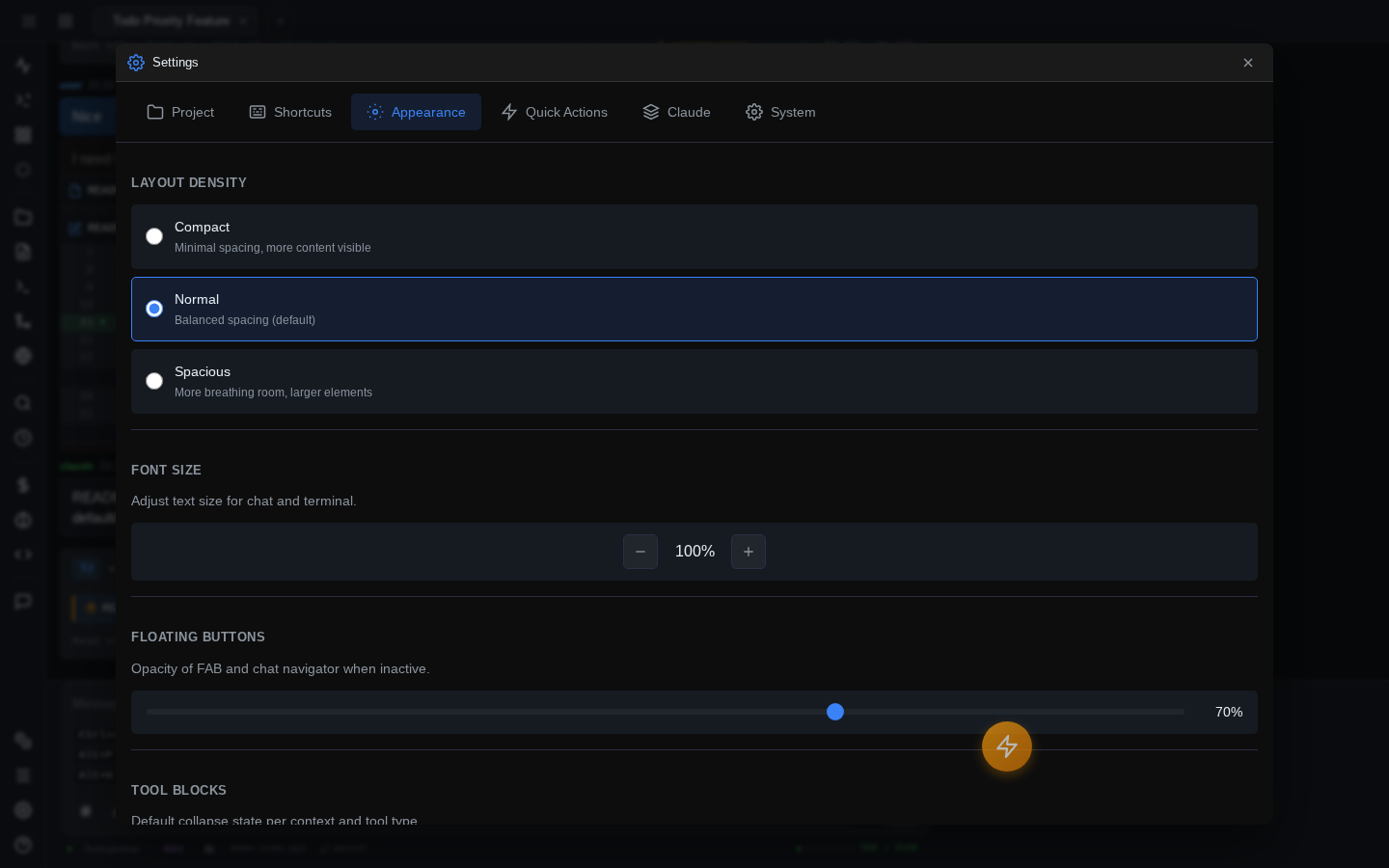
- Layout density — Compact, Normal, or Spacious. One setting re-spaces the entire UI.
- Font size — 70–150% scale.
- Floating buttons — idle opacity for the FAB and chat navigator (10–100%).
- Tool blocks — a grid controlling how tool-call blocks render (expanded / compact / collapsed), independently for read, write, and execute tools, and separately for normal output, thinking blocks, and sub-agent activity.
- Widgets — text selection in file previews, and default sizes for the terminal and file-preview windows.
- Input — disable autocorrect (welcome on iPad), highlight thinking keywords, annotate images on paste (see Images & annotation), and shortcut hints — a configurable set of key-hint reminders shown in the UI.
Quick Actions
Configures the radial FAB menu (see below): FAB visibility (Always / Mobile / Disabled), behavior options (context-aware action swapping, tooltips, press-drag-release selection, haptic feedback on mobile), which action sits in each slot, and preset switching.
Claude
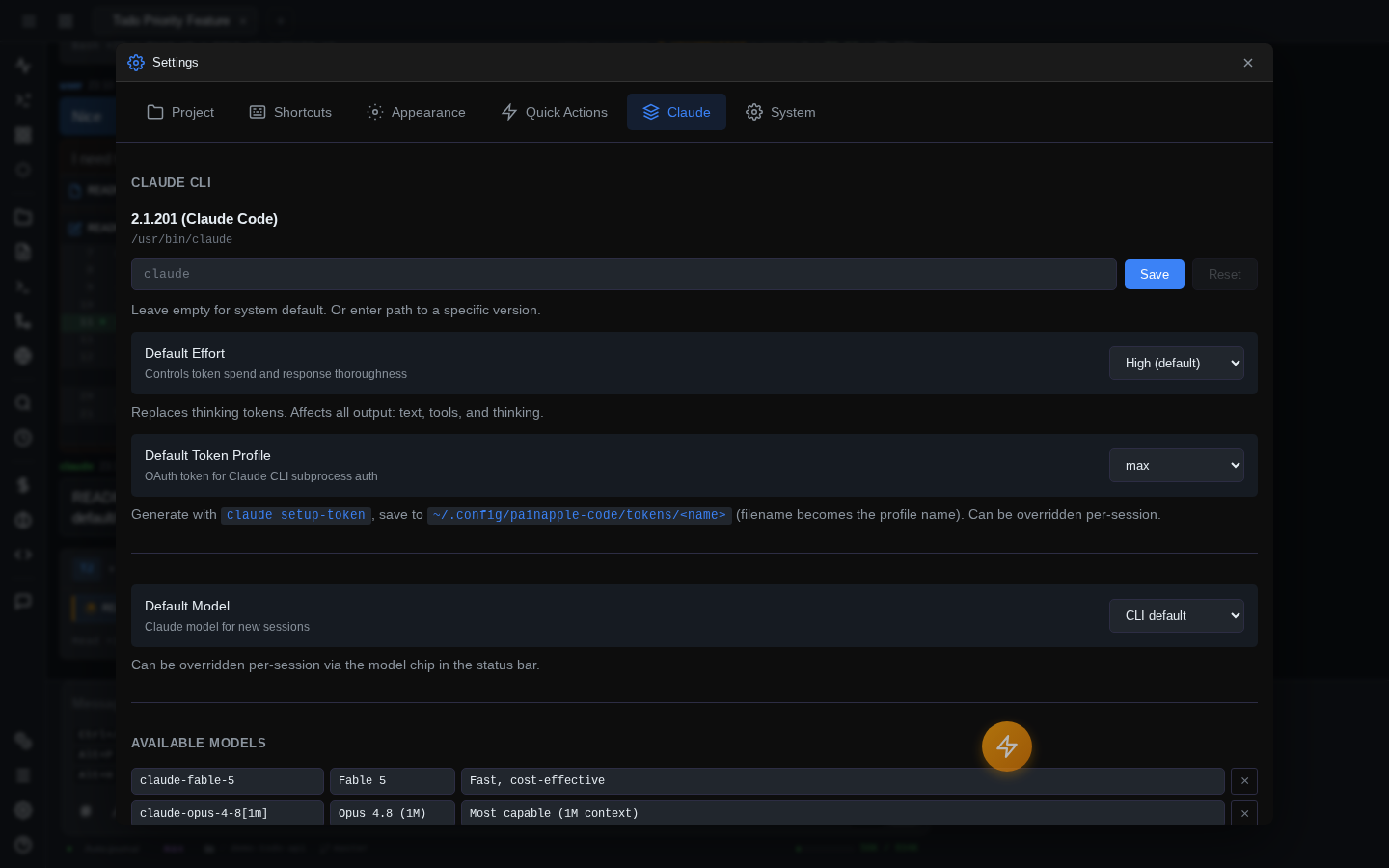
- Claude CLI — the binary path the bridge invokes, with the resolved version shown.
- Default effort and default token profile — output-budget defaults for new sessions.
- Default model — pre-selected model for new sessions (or leave it to the CLI default).
- Available models — the model catalog behind the model picker. Add entries by ID, edit labels/descriptions, or reset to the shipped list.
- Background models — which model writes the Shadow Git auto-journal summaries.
System
- Sessions — maximum concurrent tabs (1–20), how many sessions the welcome screen and search load, auto-retry count for transient API errors (500/529), and "Stop on questions" — interrupt Claude when it asks a multiple-choice question instead of letting it auto-answer and continue.
- Permissions — the default permission mode for new sessions.
- File downloads — what clicking a file download does: Auto, always Download, or Copy to clipboard.
- Additional directories (all projects) — like the Project tab's extra dirs, but global.
- Shadow Git defaults — journal on/off and rich commits for projects that haven't set their own.
Quick actions FAB
A floating action button that expands into a radial menu of up to 8 actions (top arc 1–4, bottom arc Q W E R while open; Ctrl+Q toggles it from the keyboard). Tap to open and tap an action, or use press-drag-release if you enabled it. The FAB itself is draggable — park it anywhere, the position sticks.
Right-click (or long-press) the FAB for its context menu: a search box over every registered action — not just the 8 in your slots — plus one-tap preset switching. Presets ship for common setups (Balanced, Power User, Minimalist, iPad User, Panel Focus, Debug) and are stored on the server as editable JSON under ~/.painapple-code/presets/, so you can add your own.
The left rail
The icon rail on the left edge holds panel toggles (files, git, logs, terminal, …) with running-state badges. Cmd+B / Ctrl+B — or the hamburger button — toggles it between icons-only and icons-with-labels on desktop and iPad; on phones it slides in as a drawer instead. The expanded state is remembered.
The rail also hosts the density button: a popup that flips Compact / Normal / Spacious live, without opening Settings — same setting as Appearance → Layout density, kept in sync.
Widget visibility scopes
Floating widgets are per-tab by default: switch session tabs and each tab's widgets swap in and out. The eye icon in a widget's header changes that per widget:
| Scope | Meaning |
|---|---|
| This Tab | Only visible on the tab it was opened in (default) |
| Project | Visible on all tabs of the same project |
| All Tabs | Visible on every tab, hidden while the terminal is fullscreen |
| Everywhere | Always visible, even over a fullscreen terminal |
Handy for pinning one terminal or file preview across a set of related sessions.
What syncs to the server
Some customization is stored server-side, so it follows you to any browser or device that logs into the same bridge; the rest is per-browser localStorage.
Server-side: shortcut overrides, quick-action presets, the model catalog and default model, per-project config (extra dirs, Shadow Git, commit sections), global Shadow Git defaults, global extra dirs, and tab state. Per-browser: appearance settings (density, font scale, opacity, tool-block modes), input toggles, and the FAB position/slots.
Related
- Custom slash commands — define your own
/commandsper project or globally: Slash & bang commands. - Instance identity — name and accent-color each bridge instance (
--instance-name DEV --accent red) so tabs, PWA icons, and the UI make it obvious which server you're on: Server CLI.