Comments stash & discussions
Select any text in a Claude response or a previewed file and do something with it — quote it as context for your next prompt, or fork a side conversation about it without derailing the main thread.
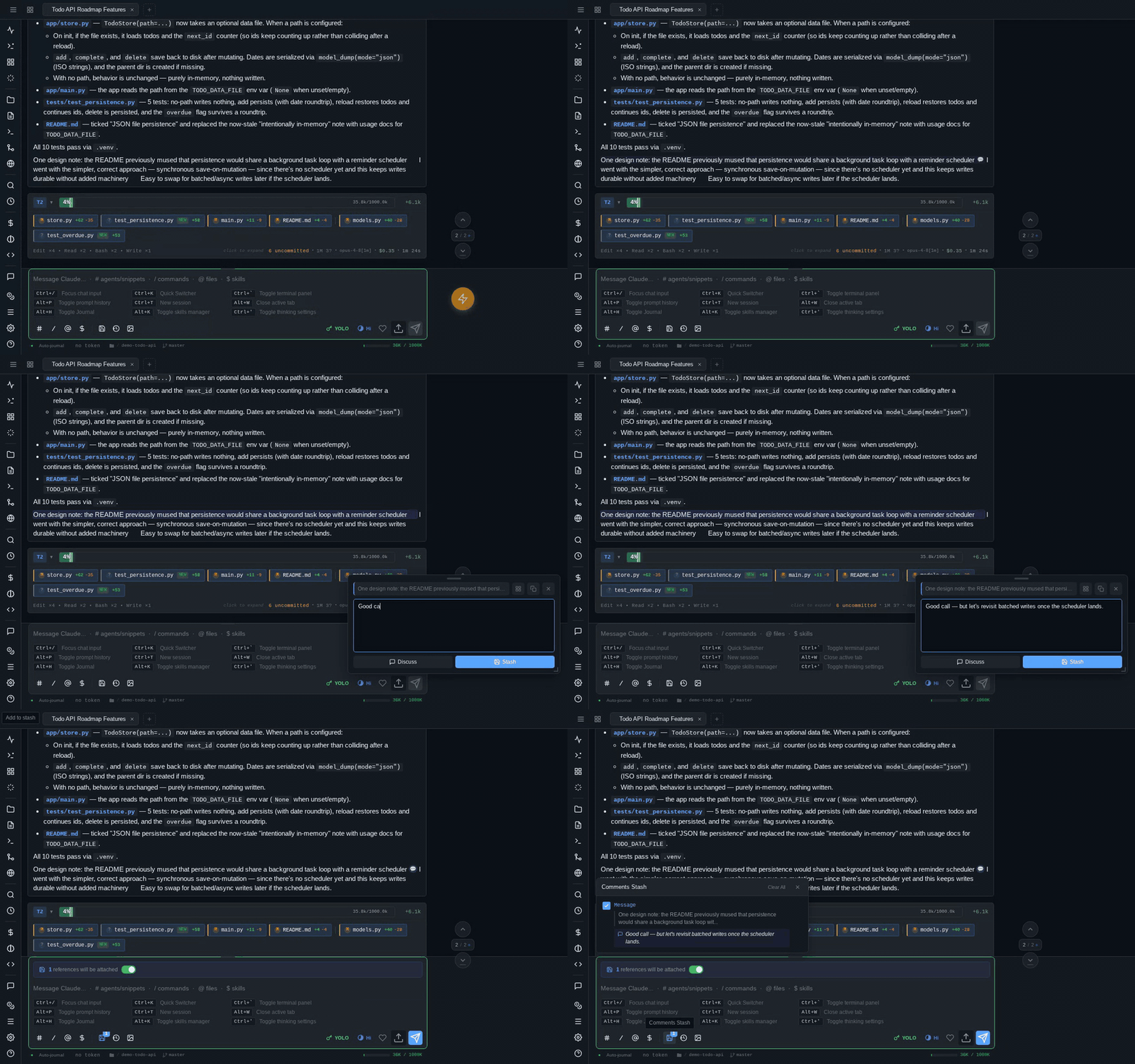
The selection action bar
Selecting text in chat messages or the file preview pops up a floating selection action bar: a quote preview of what you selected, a note input, and Stash, Discuss, copy, and close buttons. The bar is draggable and resizable, and it remembers its position and size.
How you select depends on your input device:
- Desktop — select text with the mouse as usual; the bar appears with your selection quoted.
- Touch — native text selection on mobile is miserable, so selectable blocks (paragraphs, list items, code blocks) show a small bubble icon at their end. Tap it to select the whole block instantly, no finger-dragging required. Blocks that already carry a stash comment show the bubble filled in — tap it again to edit the comment.
Inside the note input, Enter stashes the selection (with your note, if you typed one) and Ctrl+Enter starts a discussion. Esc closes the bar.
Multi-select
The bar has a multi-select toggle. Turn it on and keep tapping bubbles (or making selections) — each one is added to the set, with a count badge on the bar and a combined preview. Stashing or discussing then covers all of the selected blocks at once. Multi-selected file blocks keep their combined line range, so the reference still points at the right lines.
You can also paste an image into the note input — it's routed to the regular upload pipeline and rides along on the same message as the stashed context.
Comments stash
The stash is a deferred-context collector: pile up references now, and they attach to your next prompt automatically.
The workflow:
- Select text (in a response or a file preview) and optionally type a note.
- Press Stash (or just Enter).
- Repeat for as many references as you like — a badge on the stash button in the toolbar counts them, and a preview bar above the input shows how many "references will be attached".
- Send your next message. The stash is formatted as a context block ("I'm referencing these code sections: …"), prepended to your prompt, and then cleared — it's one-time use.
File selections are attached with their path and line range plus the selected code in a fenced block; message selections are quoted. Your note travels with each item.
Reviewing the stash
Click the stash button to open the picker — the full list of stashed items. From there you can:
- Toggle any item's checkmark to include or exclude it from the next message without deleting it.
- Edit an item — clicking it reopens the selection bar with the note pre-filled (clearing the note and stashing removes the item).
- Add a note to items stashed without one.
- Open in preview — file-based items have a button that opens the file in the preview widget, scrolled and highlighted to the exact stashed lines.
- Remove individual items, or Clear All (a two-click confirm: first click arms the button, second commits).
- Move to… — send all enabled items to another open session's stash, handy when you realize the question belongs in a different conversation.
Pausing the stash
The preview bar above the input has a checkbox. Unchecking it pauses the stash for this session: items stay put but nothing attaches to your prompts until you re-enable it. The paused state is per session, so pausing one conversation's stash doesn't affect the others.
Discussion threads
Where the stash defers, discussions fork. Press Discuss (or Ctrl+Enter) with a question typed and pAInapple Code forks your current session into a new one, sends your question with the selected text as context, and streams the answer into a thread card in the discussion panel — a right-hand sidebar on desktop, a bottom sheet on phones and tablets. Toggle the panel any time with Alt+/.
Your main conversation is untouched: the fork has the full context of the session up to that point, but its answer doesn't consume your main thread's context window or history.
Each thread card shows the quoted selection, the conversation so far, and a running cost for the fork. From the card you can:
- Reply — continue the Q&A inside the card, streamed in real time.
- Jump to source — click the anchor to scroll the chat to the original message (or open the file at the selected lines).
- Resolve — mark the thread done; it keeps its transcript but stops accepting replies.
- Collapse / close — tidy up the panel.
- Continue in Tab — graduate the thread into a full session tab when a quick side question turns into a real work stream. The card stays behind as a stub with an "Open in Tab" link.
Threads are stored on the server per session, so they survive page reloads and reconnects.
Side questions without a selection
/btw <question> from the message input forks a discussion thread with no selection at all — for those "by the way…" questions you don't want polluting the main conversation.
Stash vs. Discussion in one line: Stash = deferred context (attaches to your next message, no response of its own). Discussion = immediate fork (real-time Q&A in a separate session).
Finding your way around a long chat
Two tools help you navigate a long transcript; both are covered in the keyboard shortcuts reference.
Search in conversation — Cmd+F / Ctrl+F opens a search bar over the current chat. Matches are highlighted live (message text, tool output, and thinking blocks are all searched) with an "N of M" counter; Enter / Shift+Enter or Cmd+G / Cmd+Shift+G step through them.
Chat navigator — a small floating pill with up/down arrows and a "current / total" position indicator lets you hop between your own prompts. Cmd+Up / Cmd+Down (Ctrl+Up / Ctrl+Down on Windows/Linux) jump to the previous/next user message, briefly highlighting it. Navigating past the top of what's loaded automatically pulls older history from the server.