Sessions & tabs
Each tab in pAInapple Code is its own Claude Code session — its own conversation, working directory, and subprocess on the server — and you can run several of them side by side, browser-style.
The tab strip
Press Cmd+T / Ctrl+T (or the + button) to open a new tab. It lands on the welcome screen, where you pick a project and type your first prompt. By default you can have up to 10 sessions open at once; raise or lower the limit (1–20) in Settings → Max sessions.
Session tabs share one strip with widget tabs — terminals, file previews, and scratch editors opened as tabs interleave freely with sessions, so a terminal can sit right between two conversations. Each session tab shows a status dot (lit while Claude or the auto-journal is working), an unread dot for background activity, and a ? badge when Claude is waiting for an answer from you.
Managing tabs:
- Close — the × on the tab, Alt+W, or Cmd+W / Ctrl+W in the PWA. Closing a tab does not delete the session — reopen it any time from the welcome screen.
- Reopen — Cmd+Shift+T / Ctrl+Shift+T brings back the last closed tab, just like a browser.
- Rename — right-click (or long-press) the tab → Rename.
- Reorder — drag tabs with the mouse or trackpad. On touch, long-press to pick a tab up, then drag; release in place to get the context menu instead. The menu also has Move Left / Move Right.
- Context menu — right-click a session tab for Copy Session ID / URL / CWD, Fork, Clone, Rename, Favorite, Close, and Close Others.
Tabs survive your browser
Open tabs, widget tabs, and their order are saved server-side (not just in localStorage), so your layout comes back intact after a page reload — even on iPad, where the PWA's localStorage is notoriously flaky.
Switching sessions
The basics: Cmd+1 … Cmd+9 jump to a tab by position, Cmd+[ / Cmd+] step to the previous/next tab (Ctrl on Windows/Linux). Beyond that, four pickers cover different moods:
Quick switcher
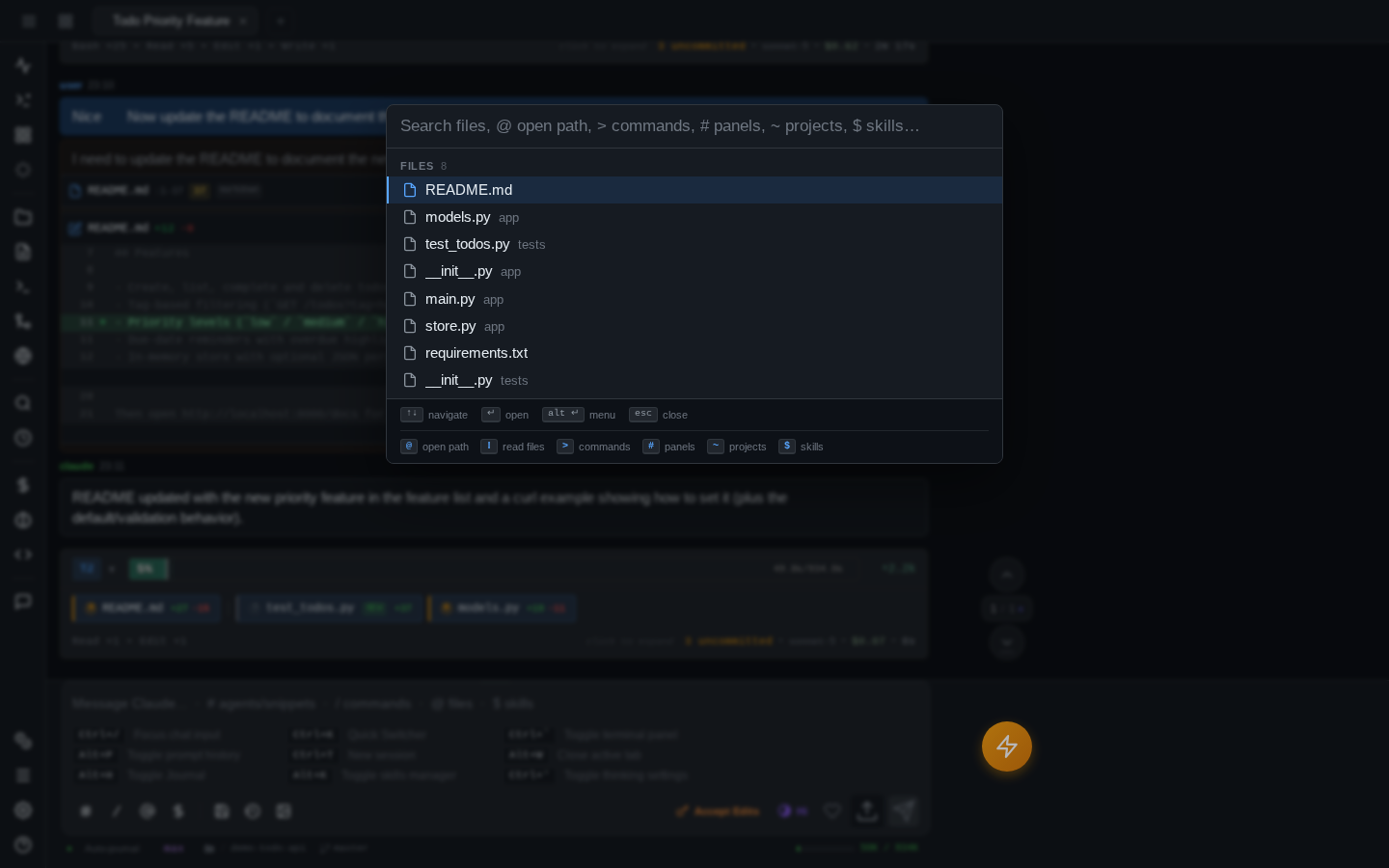
Cmd+K or Cmd+P (Ctrl+K / Ctrl+P) opens a fuzzy finder. With no prefix it searches files in the current project, blended with recently opened ones. A prefix character switches mode — the footer legend reminds you which is which:
| Prefix | Searches |
|---|---|
| (none) | Files in the project, recency-ranked |
@ |
Hands off to the Open dialog (filesystem paths) |
! |
Files Claude has read this session |
> |
Commands (every quick action) |
# |
Panels and widgets |
~ |
Projects — press Right on a project to drill into its sessions, Left to back out |
$ |
Skills |
Enter opens the selected item; Alt+Enter opens a context menu with alternatives (open in background tab, copy path, and so on).
Command palette
Cmd+Shift+P (Ctrl+Shift+P or F1 on Windows/Linux) is the quick switcher pre-set to > mode — a searchable list of every command, VS Code style.
Open dialog
Cmd+O / Ctrl+O opens a filesystem path picker: type any path (src/, ~/, /etc, ../), Tab-complete as you go, and Enter either previews a file or enters a folder. From any folder, Open this folder starts a new session there; if the path doesn't exist yet, Create this folder makes it first. Press Backspace on an empty query to hand back to the quick switcher.
Grid switcher
Alt+Tab (Mac/iPad; Ctrl+Shift+] / Ctrl+Shift+[ on Windows/Linux) or the All sessions header button opens an iPad-style card grid of every open session — each card shows the last message, turn count, working directory, and any pending-question or plan-ready badge. With Alt+Tab it behaves like the OS app switcher: hold Alt, tap Tab to cycle, release to switch. Opened any other way, it stays up until you click a card or press Esc.
Sessions keep running without you
Claude subprocesses are bound to session IDs on the server, not to your browser connection. Close the lid, lose Wi-Fi, or reload the page mid-turn — Claude keeps working, and when the client reconnects it reattaches to the running session and backfills anything you missed. Background tabs sync the same way, lighting up their unread dot.
The stop button is the exception: it sends an interrupt to the running Claude process, ending the turn.
Fork, clone, and branch
Two ways to spin a session off an existing one, both in the tab context menu:
- Fork creates a new session that branches the conversation — Claude starts with the full context of the original (via the CLI's
--fork-session), so you can explore an alternative direction without polluting the original thread./forkdoes the same, and/fork-compactforks and immediately compacts the copy. - Clone (Cmd+N / Ctrl+Shift+N) creates a fresh, empty session in the same working directory — same project, blank slate.
There's also a send-time shortcut: Ctrl+Shift+Enter (or Cmd+Shift+Enter) sends whatever you've typed in a brand-new clone instead of the current session — handy when you realize mid-prompt that this question deserves its own context window.
When Claude asks you a question
When Claude uses its AskUserQuestion tool, the answer UI renders as an interactive form right in the chat — option buttons (or a grouped wizard when several questions arrive at once), an Other… option for a free-text answer, and an Ignore button to dismiss without answering. Sending a regular message auto-dismisses any pending question. Tabs and grid-switcher cards show a ? badge while a question (or a plan approval) is waiting.
By default the bridge stops Claude on these questions so you can answer. You can flip that off in Settings ("Stop on questions"): the question is then auto-denied and Claude keeps going on its own judgment — the card stays in the transcript with a note explaining what happened.
The turn summary bar
After every turn, an inline bar summarizes what just happened:

Reading it left to right:
- Turn number and an expand chevron.
- Context bar — how full the context window is (percentage and tokens against the usable window), with this turn's gain highlighted and a token delta on the right. The bar shifts to warning colors as you approach auto-compact territory.
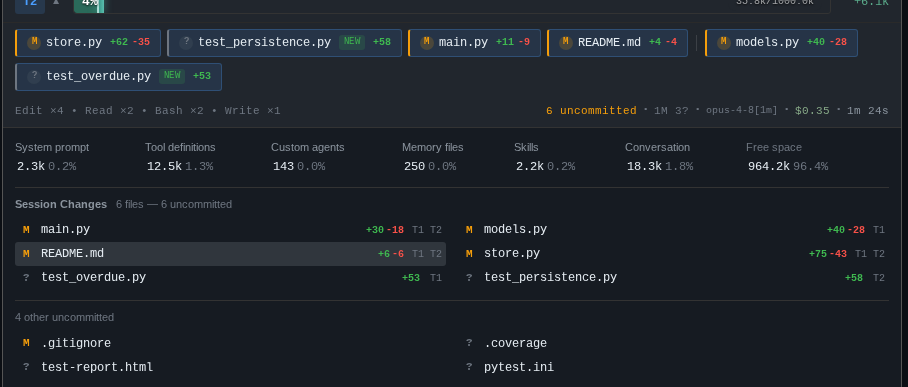
- File pills — every file changed this turn, with
+/-line counts and anewbadge for created files, followed by session-accumulated changes and thumbnails of images Claude read. Pills are live: tap one for a diff/preview, long-press for compare presets (this turn's changes, to session start, to git HEAD, …). Git status dots are overlaid asynchronously. - Tools row — tool-call counts (
Edit ×3 Bash ×2), duration, cost, and which model ran.
Click the bar to expand the full context-window breakdown — system prompt, tools, messages, autocompact buffer, and free space — plus the complete list of files changed so far this session:
Continue in the CLI
Every session here is a real Claude Code session. Grab the ID from the tab context menu (Copy Session ID) and pick the same conversation up in your terminal: