Zen mode
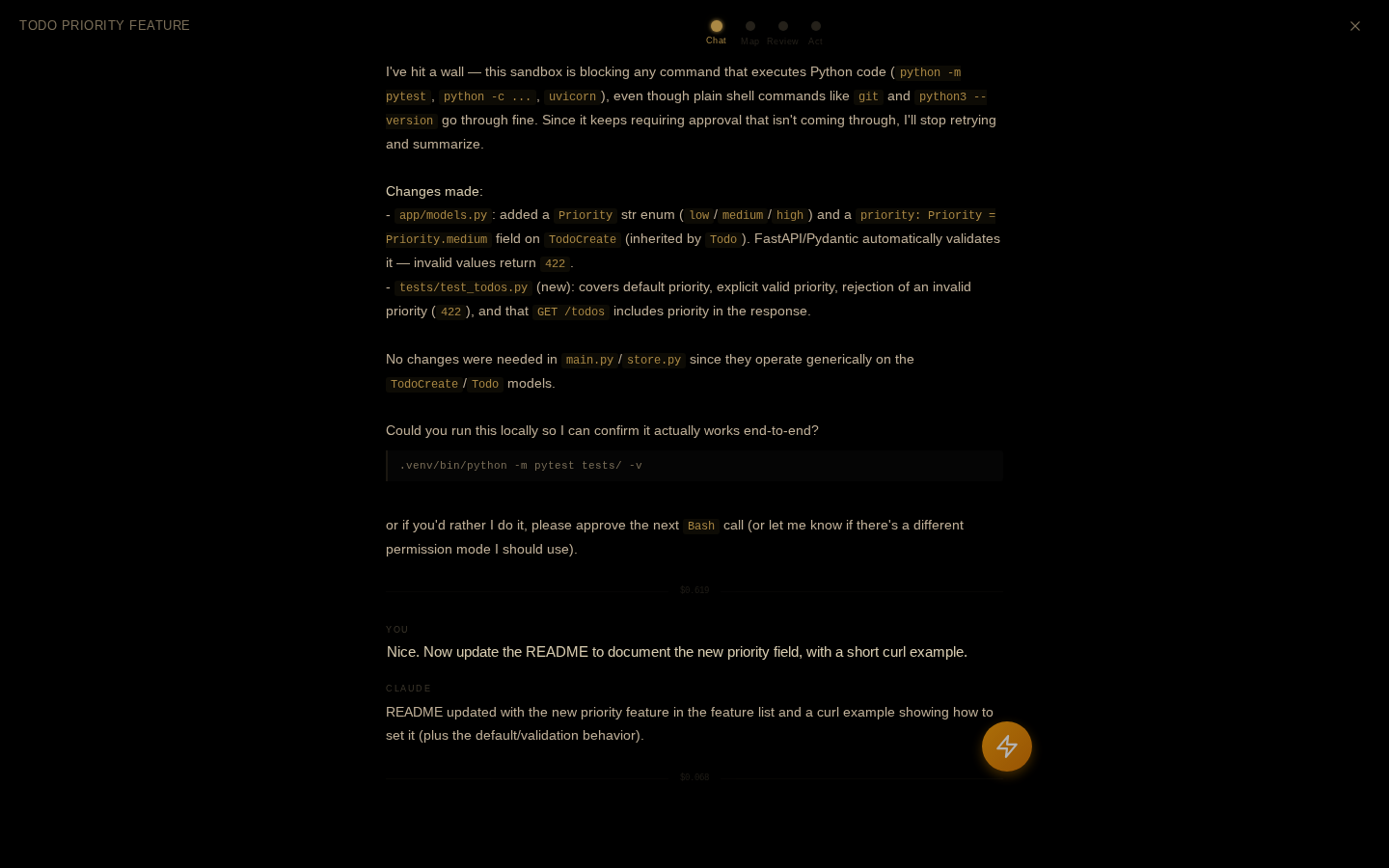
Zen mode is a fullscreen, pure-black focus overlay for the active session — designed for dark rooms and OLED displays, with warm amber accents and almost no chrome.
Toggle it with Alt+Z (or the quick-actions menu). It covers the whole app: a slim top bar shows the session name, four navigation dots, and a close button — everything else is the current view.
Zen mode is read-only. It renders what the browser already has for the active session; there is no input box, and nothing you do here sends a message — except one button on the Act view, noted below.
The four views
Chat
The default view when you enter. A stripped-down conversation reader: your prompts and Claude's replies with minimal formatting (bold, inline code, code blocks), and everything noisy compressed —
- Tool calls collapse into terse one-line groups (
> Read server.py,~ Edit app.js,$ Bash …). - Thinking blocks become a dim, collapsed
thinking...disclosure. - Each turn ends with a thin divider showing its cost.
The view opens scrolled to the bottom, at the latest exchange.
Map
An SVG mind map of the session, laid out radially: a glowing session node in the center, one node per turn arranged around it (labeled with the truncated prompt), and up to six file nodes branching off each turn — edited files drawn brighter than read ones, with a +N node when a turn touched more. Nodes and edges animate in when the view opens.
Click any node for a detail card: the session node shows totals (turns, files edited, tool calls, cost), a turn node shows its full prompt, a snippet of Claude's response, and the files it touched, and a file node shows the full path and whether it was read or edited. Click the background to dismiss the card.
Review
A plain-text session summary: a stat row (turns, files edited, tool calls, and cost when known), a numbered conversation-flow timeline of your prompts, then two file lists — files changed and files read (capped at the first 20).
Act
The simplest view: a "What would you like to do next?" prompt over four large buttons. Each one exits zen mode and then acts:
- Continue — back to the session with the message input focused.
- View Diff — opens the git panel.
- Commit — sends
/committo Claude. This is the one Act button that sends a message. - New Session — starts a fresh session.
Navigating and exiting
Move between views by clicking the dots in the top bar, pressing Left / Right (they wrap around), a horizontal two-finger trackpad swipe, or a quick horizontal finger swipe on touch screens.
Exit with Esc, the × button, or Alt+Z again.
It reads what the browser has
The Map and Review views are built by scanning the session's messages as loaded in the browser, so a session opened mid-history shows only the loaded portion, and file/tool detection is heuristic. For exact per-turn records, use Shadow Git and the history tools in Cost analytics & history.